Multilingual Game (Translations)
One game, one set of statistics, one set of answer codes — and every player reads the text in their own language. Translations live beside the game and replace the text when the page is shown; where there is no translation, the player sees the original. A player whose language matches the game's language gets nothing replaced at all.
This is the recommended way to translate text, links and pictures. The older {% match lang %} template (Templates) keeps working and stays the right tool where a language does not need a different version of the same text (that is exactly what translation is for) but a genuinely different structure: its own set of html blocks that other languages do not have, its own logic in the level script rather than just a different string in it, or branching by language combined with another template - by code, by team, by bonus. For translating the text of the game, new games are better made with translations: the task text does not turn into N copies of itself, a change to the markup does not have to be repeated per language, and the editor shows what is still untranslated.
Turning it on
In the game editor, the “Game settings” tab, the “Localization” block:

- Game language — the language the game is written in. Until it is chosen the game has no localization at all: nothing is counted, nothing is stored, the editor looks exactly as before.
- Translation languages — checkboxes for the languages the game is translated into. Next to each one is “falls back to”: which language to show for what is not translated in this one yet. Empty means straight to the game's own language.
- The “other languages” row — where to send a player whose language the game does not have at all.
Example: the game is written in Russian and translated into Ukrainian and English, while Polish falls back to Ukrainian (closer than Russian). A Polish player sees Polish where it exists, Ukrainian where Polish does not yet, and Russian where neither does.
As soon as there is at least one translation language, a “Translation” tab appears in the editor.
The "Translation" tab
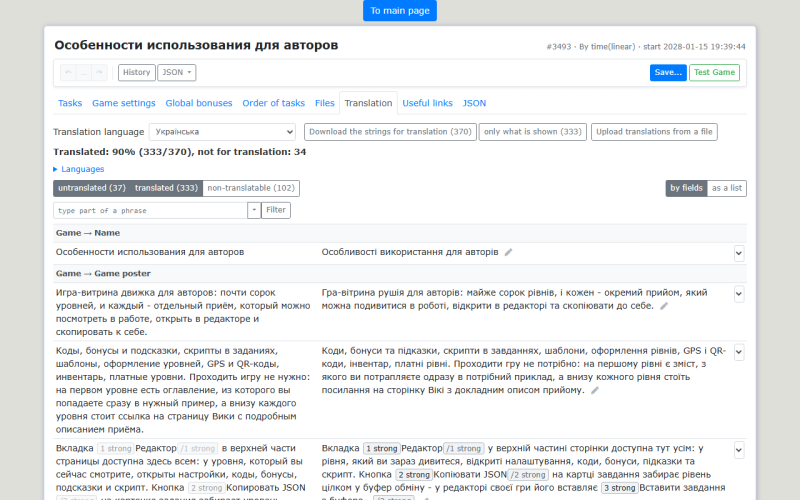
It is a table of “original → translation” pairs. The string from the game on the left, a box for the translation on the right. It opens on the untranslated strings — on what is still left to do.

- The strings are collected automatically. Big text (the task, a hint, the poster, the finish text) is cut into paragraphs; short fields (game name, task name, code name, hint description, answer format) go in whole. Nothing has to be marked up in the text.
- The layout — a switch on the right above the table. “By field” (the default) puts the strings under the heading of their field — “Task 7 → Task text” — and in the order they come in the text: that is how a paragraph is translated with its neighbours in sight.\
 “As a list” gives one flat list where every row carries its own address; that is handier for short fields — for a code name the field is a single string, and there would be more headings than work.\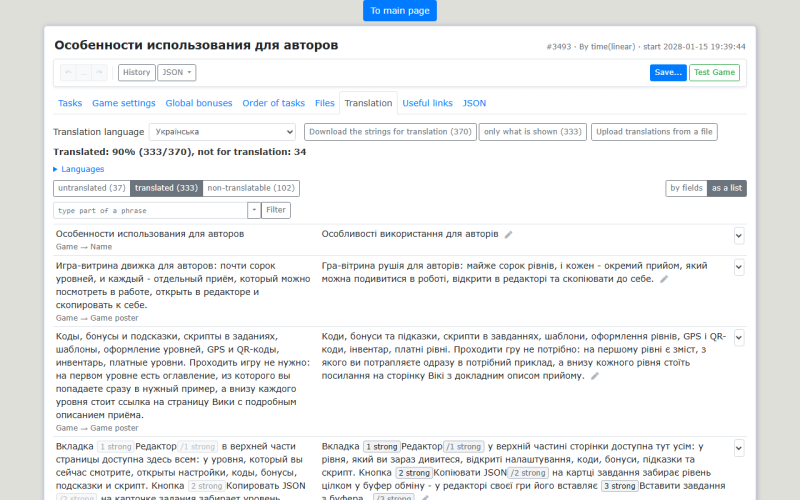
- Identical text is translated once for the whole game. When a string occurs in several places, “places: N” is shown next to it — hover to see where. Editing such a string changes it everywhere. By field such a string is drawn in every field that holds it and marked “shared string, places: N”: it is not a duplicate but one and the same dictionary entry.
- The state of a row is shown by a badge: own translation, from language X (came down the chain), base (no translation), or not translated on purpose.
- Completeness is shown as two numbers: how much is translated into this language, and how much comes out with the fallback chain. The second number alone is misleading — it hides untranslated text behind another language.
- Row groups — “untranslated”, “translated”, “not translatable”. These are not a choice of one out of three but toggles: they add up. Only untranslated is on by default — that is the work; translated is turned on to proofread what is done, not translatable to take a mark off.
- The filter — the line under the groups. It selects by the original, with a regular expression, and works together with the groups rather than instead of them: “untranslated” AND matching. It is applied on Enter or with the “Filter” button; the numbers on the group buttons then count what was selected, and “shown: N / M” next to the box says how many strings are left after the filter and the groups.


Filters and marking in bulk
The arrow by the box opens the ready-made filters:
- “no Cyrillic” and “no Latin” — computed on the text with the chips and the substitutions taken out, so
!username!and%offline%do not count as Latin; - “no words” — there are letters but no word: coordinates like
N 49.5905177 34.5434377, schemes, “2+ pcs”.
What is picked from the list goes into the same box, so what the selection is made by is always in sight; a ready-made filter can also be edited - the moment the text is touched it becomes an ordinary regexp. Your own filter can be saved (“save filter” next to the box) - it joins the second half of the same list, and “forget filter” takes it back out. Saved filters are personal and shared across games: they are a tool of whoever is working through the dictionary, not a property of the game.
This is what the filter is for: to the right of it is the “with everything shown…“ list. It holds the same three items as the end of every table row (“translate”, “do not translate in this language”, “do not translate anywhere”), only they apply in one go to everything that is shown - that is, to the filter together with the groups. It asks with a number both ways: unmarking in bulk is the more dangerous half - it puts back into the work what was deliberately excluded. The whole batch is one undo step, and every string is visible in the save dialog.
A typical run: the “no Cyrillic” filter → what is left are brands, proper names and links → mark them in one go → the completeness figure stops being stuck on what nobody was going to translate.
Markup inside a string
Bold, links, images and templates inside a paragraph are not typed into the translation by hand: in their place stand chips — small numbered boxes.

Click a chip and it goes into the translation where the caret is.
 Chips may be reordered (word order differs between languages), but each one has to appear in the translation exactly once — otherwise the translation is not saved and the editor says so.
Substitutions behave the same way — !username!, !task_n! and the rest: they stay in the translation as they are, simply where the sentence wants them.
A useful consequence: the tags themselves, the link addresses and the classes live only in the original. Fix a link in the task and it changes in every language at once.
What is not translated
- Answer codes are never translated. That is what keeps the statistics common. Answers in other languages are simply added as comma-separated synonyms of the same code.
- Do not translate this string — a switch at the end of the table row, with two modes: “do not translate in this language” and “do not translate anywhere”. For brands, proper names, Latin quotations. Such strings leave the “untranslated” filter and stop the completeness figure from being unreachable.
translate=“no”in the task HTML is the stronger way: such a piece never becomes a string at all, and even the browser's own auto-translation leaves it alone. For code words and answers inside the text this matters more than it sounds: an auto-translated code word breaks the game.
Links and files
Addresses of images, sounds, videos and links are not translated by default — nearly all of them are language-neutral. But a translation of an address can be set: that is how a player is sent to a page in their own language, or gets the voice-over in it, while the paragraph and the markup stay single.
An address sits in the table where it stands in the text, as an ordinary row: a link inside a paragraph goes under that paragraph, indented; a picture standing in the field on its own is a row of its own. Translating the paragraph, you see its link too - there is nothing to go looking for.
In every other respect it is a row like any text one: the same groups (“untranslated” and the rest), the same “do not translate” switch. The single difference is that addresses do not count towards completeness.
Subtitles do not need the overlay — HTML already does them: several <track srclang=”…”> inside one <video>, and the browser picks.
Stale translations
The identity of a string is its text. Edit the original and the translation no longer belongs to it: the string becomes untranslated again and the old translation moves to the “Stale translations” section. If the edit was small (a typo), the editor offers it back with a “restore” button right under the new string. The ones no longer wanted can be deleted — one by one or all at once.

Translations from another game
At the bottom of the tab: “Load translations from game” — a game number and a button. Only the pairs whose original exists in this game as well are taken; the report says how many matched and how many were skipped. Existing translations are not overwritten by default. It makes sense for a series of games by one author with the same original language: a game written in another language will have no matches.
Translating by file

Next to the language selector there are two buttons. “Download strings for translation” hands out game_<id>_<lang>.json with the strings of that language: the untranslated ones empty, the translated ones filled in, so that the translator has a glossary and some context. Strings marked “do not translate” and the addresses of links and files are left out. “Load translations from file” takes it back — the pairs land in the draft and a report appears next to the button: “Loaded: N, skipped: M”. An empty translation in the file deletes nothing: a half-filled file means “this much is done so far”.
With a filter on, or with some groups hidden, a second button appears next to it - “only what is shown (N)“ - handing out the same file built from the selected strings. The live case is “fifty new strings came in” or “give task 7 to the translator”. The number on the button says how many will actually go, and the whole file stays one click away next to it.
That is how a game is translated outside the editor: in a CAT tool, by a human translator, or by a chatbot — Translating a Game with AI.
How it is saved
Translations are part of the editor's draft, next to the text itself. Unsaved tasks can be translated too: write the task, translate it right away, save once. The edit to the original and the fixed translations reach the server in one operation, so there is never a moment when players see new text with an old translation.
Translations travel with the game in its JSON — the translations section — and come back on import. A copy of the game gets its translations too; copying a single task into another game does not carry translations over (the dictionary belongs to the game, and another game's strings would be noise there) — “Load translations from game” is for that.
Checking
Open the game with an explicit language: https://qeng.org/game/1234/?lang=uk. Check a language the game does not have, too — that is how you see whether the “other languages” row works.
The same level in the language of the game and in Ukrainian: the text is swapped, while the layout, the images and the codes stay the same for everyone.


What translations do not cover yet
- names of paid products;
gt(…)inside a<script>tag pasted directly into a task's, hint's or bonus's text - the engine translates it, but the “Translation” tab does not offer that string yet. The dedicated “Task script” field is not affected by this - it is translated in full.
For those the older way — {% match lang %} — still applies.
See Also
- Domain Translation — the header, menu, footer and pages of a domain are translated the same way and in the same table.