The Game Editor
The editor is a single page holding the whole scenario: game settings, tasks with their codes, bonuses and hints, global bonuses, task orders and authors. Open it with the “Edit” button in the game list, or with the “Edit game” link on the scenario page.
What to understand first
Your edits live in the browser until you save them. Adding a task, changing a code, dragging a level — all of it changes only the draft on your screen. The server knows nothing about it yet, the page never reloads, and nothing is lost between actions.
Saving is one act, and it is all or nothing. The “Save…“ button first shows a window listing what is about to travel to the server, and writes only after you confirm. It writes in one transaction: either everything is applied, or — if the server refuses anything — nothing is. There is no such thing as a half-saved game.
You always see what changed. Changed fields are highlighted, task cards and tabs are marked, and a yellow “Draft” badge sits in the toolbar. It means exactly one thing: the server still holds the older version.
What is on the screen

The toolbar

- Draft — appears when the browser holds unsaved changes.
- The game is running! — a red badge: whatever you change will be seen by the teams playing right now.
- ↶ … ↷ — undo, walk the steps, redo (see below).
- History — versions of the game kept in this browser.
- Download JSON / Upload JSON — the whole scenario as a file, see The JSON of a task and of a game.
- Save… — preview the changes and write them to the server.
- Test the game — saves (if there is anything to save) and opens the game in test mode in a new tab.
The tabs
- Tasks — the task cards: the tasks themselves, codes, bonuses, hints. The dropdown next to the arrows picks which of them to show.
- Game settings — name, start and end time, game type, statistics, localization, and a folded “Authors” block — who else may edit this game.
- Global bonuses — bonuses that apply to the whole game.
- Task order — the lines, see Task order.
- Files — uploading images and sounds, see Game Files. The one place in the editor that does not go through the draft: a file reaches the server at once, and is deleted at once — the “Save…” button has nothing to do with it.
- Translation — shows up only for a game with localization switched on in its settings.
- Useful links — the game page, statistics, the scenario view, import, one-time teams, the old editor.
The scenario page has a “Scripts and css” switch: it hides the code blocks inside tasks. For an author reading the scenario as the text of the game they only get in the way — a long block in the middle of a task pushes everything else down. They are shown by default. - JSON — the whole draft as text.

A task card

Cards are folded, so that a list of fifty tasks fits on the screen. The header carries the number, the name and the badges: how many codes, bonuses and hints there are, “Auto-jump” with its time when the task ends by itself, “filler” when the task's “Time x” is zero, and script when the task has a script of its own or a <script> tag written into its text.
Inside are the task's fields and the folded sections for codes, bonuses and hints. When there are more than three bonuses or hints, each row folds as well — the heading keeps the number, the answer of the bonus (or the description of the hint) and the badges: the bonus itself, “after 10s”, “for 30s”, “costs 10m”, and script when the text carries a <script> tag. A dozen bonuses stay readable, and the one you want is visible without unfolding anything. The “JSON” button in the header shows the whole task as one text; “Copy JSON” at the bottom puts it into the clipboard.
Tasks are reordered by dragging the handle to the left of the name — the numbers are recomputed for you.

Saving
“Save…“ opens the “Changes before saving” window. It lists, line by line, everything that differs from the server: game fields, changed tasks, added and deleted codes, bonuses and hints. Each row shows the old value and the new one with an arrow between them: red for what goes, green for what takes its place.

What you can do there:
- Keep some of the edits to yourself. Every change carries a “do not save” checkbox. What you tick does not travel to the server — it stays in the draft until next time.
- Look at a big field line by line. A long field — the task text and its like — is not shown in full: the row carries only the word “changed”.
 That word is a link: it opens the line-by-line comparison, which shows which lines actually changed and lets you fix the value right there — “Apply to the draft” puts the corrected value back into the draft. Text up to 2500 lines is compared line by line; beyond that the window says plainly that there are too many changes to show them line by line. A very long line is shown abridged, with a note of its size.
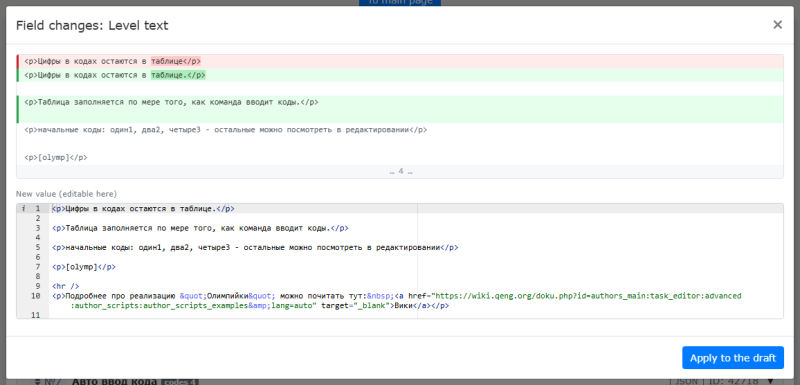
- Read what the server has to say. Before showing the window, the editor runs the changes against the server as a dry run. So errors and warnings (“this task already has answers from teams”) reach you before the write, not after.


A game that is already running has to be confirmed with a separate checkbox — so that editing a live game never happens out of habit.
A task can be deleted in a running game too. Its codes, bonuses, hints and the teams' answers go with it, and they cannot be brought back — so the save window names the price as a number: “Task 3 will be deleted together with 47 team answers”. For a game that has been played this also changes its results page, and the warning says so separately.
If somebody changed the game meanwhile, in another window or in the old editor, the save stops with a conflict message: other people's work is never overwritten silently.
Steps: undo and redo
Every change is a step, which can be undone (↶, Ctrl+Z) and redone (↷, Ctrl+Y).
The “…” between the arrows opens a window where those steps can be walked: pick a point with the arrows or the slider, and the window shows how the current state differs from it — not by one step, but by all of them together. “Apply” takes the editor there. These are still ordinary steps: what was applied can be undone, and what was undone can be redone.

Version history

“History” opens the list of versions kept in this browser:
- the state of the game before each save — the thing worth rolling back to;
- versions you set aside by hand with “Add the current draft”.
Any version can be “Compared…“ with the current draft — the same changes window opens — and loaded into the draft; it reaches the server through an ordinary save. Versions can be named and deleted.
Important: The history lives in your browser, not on the server. Another computer, another browser, or clearing the site data, and it is gone. The one backup that depends on nothing is the file you get from “Download JSON”.
Apart from the history the editor keeps a crash-recovery draft: if the browser or the tab dies with unsaved edits, the editor offers them back the next time it opens.
Small things that save time
- Time is written in words. Time fields accept
1h 30m,90mor5400— all the same to the editor, and it shows the readable form back. The hint next to the field says what your input came to. - The “Source” mode of the text editor comes with HTML highlighting and markup checking.
- A whole task as JSON — the “JSON” button in the card header: handy when an edit is easier to make as text than through fields.
- Pasting from the clipboard — “Paste tasks from the clipboard…“ under the task list adds tasks from JSON copied from anywhere. See The JSON of a task and of a game.
- The one-task editor inside the game. While an author is testing, a “Editor” block sits under the task — the same editor, but for that one task and the global bonuses. No need to leave the page to fix a typo or add a code.
The old editor
The old editor is still there: the “Old editor” link is in the “Useful links” tab. It works as it always did — a full-page form saved by the button at the bottom.
Edits in the old editor go straight to the server. If the new editor is open alongside, its draft knows nothing about them, and saving will report a conflict. Work in one of the two at a time.